How to Use a VPN on Nintendo Switch 2 for Gaming in 2026: 3 Setup Methods Compared
Affiliate Disclosure: This article contains affiliate links. If you sign up for a VPN through one of them, Hot Game Review may earn a commission at no extra cost to you. Our recommendations are based on published test data, not on who pays us. How we test and rank.
Yes, you can use a VPN on a Nintendo Switch 2 — but not the way you use one on a phone or PC. There is no VPN app to install on the console, so your traffic has to pass through a device that can run one: a VPN-configured router, or a Windows PC or Mac sharing its connection. The question matters more today than ever: Warzone Season 1 went live on November 6, 2026, bringing the battle royale to Switch 2 for the first time — and the Switch 2 version of Modern Warfare 4 already starts with a handicap: Digital Foundry measured input lag of 80.7 ms docked and 100 ms in portable mode, against 49.1 ms on PS5. This guide shows the setups that work, the honest ping cost, and the mistakes to avoid.
Contents
- 1 Why is Warzone Season 1 the moment Switch 2 players are asking?
- 2 Can you install a VPN app on Nintendo Switch 2?
- 3 Method 1: How do you set up a VPN on your router for Switch 2?
- 4 Method 2: How do you share a VPN from a Windows PC?
- 5 Method 3: What about a Mac hotspot or a phone hotspot?
- 6 What will a VPN actually do for Switch 2 players — and what won’t it do?
- 7 What should Switch 2 players avoid when using a VPN?
- 8 Which VPN should Switch 2 players pick in 2026?
- 9 Verdict: Is a VPN worth it on Nintendo Switch 2?
- 10 FAQ
Why is Warzone Season 1 the moment Switch 2 players are asking?
Warzone Season 1, live today, November 6, 2026, fully merges Warzone with Modern Warfare 4 and adds two new maps: Hajin, a large Battle Royale map with 13 points of interest across North and South Korea, and Zodiac, a compact Resurgence map with 10 points of interest around a drone-manufacturing complex. The season ends support for PlayStation 4 and Xbox One, and Warzone launches on Switch 2 with it. Warzone is free to play, so you do not need to own Modern Warfare 4 to drop in; our Modern Warfare 4 launch guide covers modes and editions.
Modern Warfare 4 is the first Call of Duty on a Nintendo console since Ghosts on Wii U in 2013 — a 13-year gap closed by a native port from Digital Legends, not a cloud-streaming workaround. and millions of players are taking the same console online this week.
Can you install a VPN app on Nintendo Switch 2?
No. The Switch 2 runs Nintendo’s proprietary Horizon OS, which cannot install VPN client apps — there is no official or third-party VPN you can put on the console itself. That is the finding of every major guide that has tested it, from hide.me to Tom’s Guide and GameSpot. Any video claiming a one-tap Switch 2 VPN app exists is selling something that does not.
That leaves three real methods. A VPN on your router is the best option at home: every device on your network is protected automatically. A Windows PC as a virtual router is the best option when travelling or in a dorm. A Mac hotspot is possible but harder — Macs have a single Wi-Fi channel and usually need a wired Ethernet connection — and a phone hotspot is the method most people try first, and the one that usually fails, because most smartphones cannot share a VPN connection over a mobile hotspot.
Method 1: How do you set up a VPN on your router for Switch 2?
A router VPN is the cleanest method for Switch 2: it protects the console with no per-device setup, and it works best docked and wired. The trade-off is one server location at a time — switching countries means logging into the router, not tapping an app.
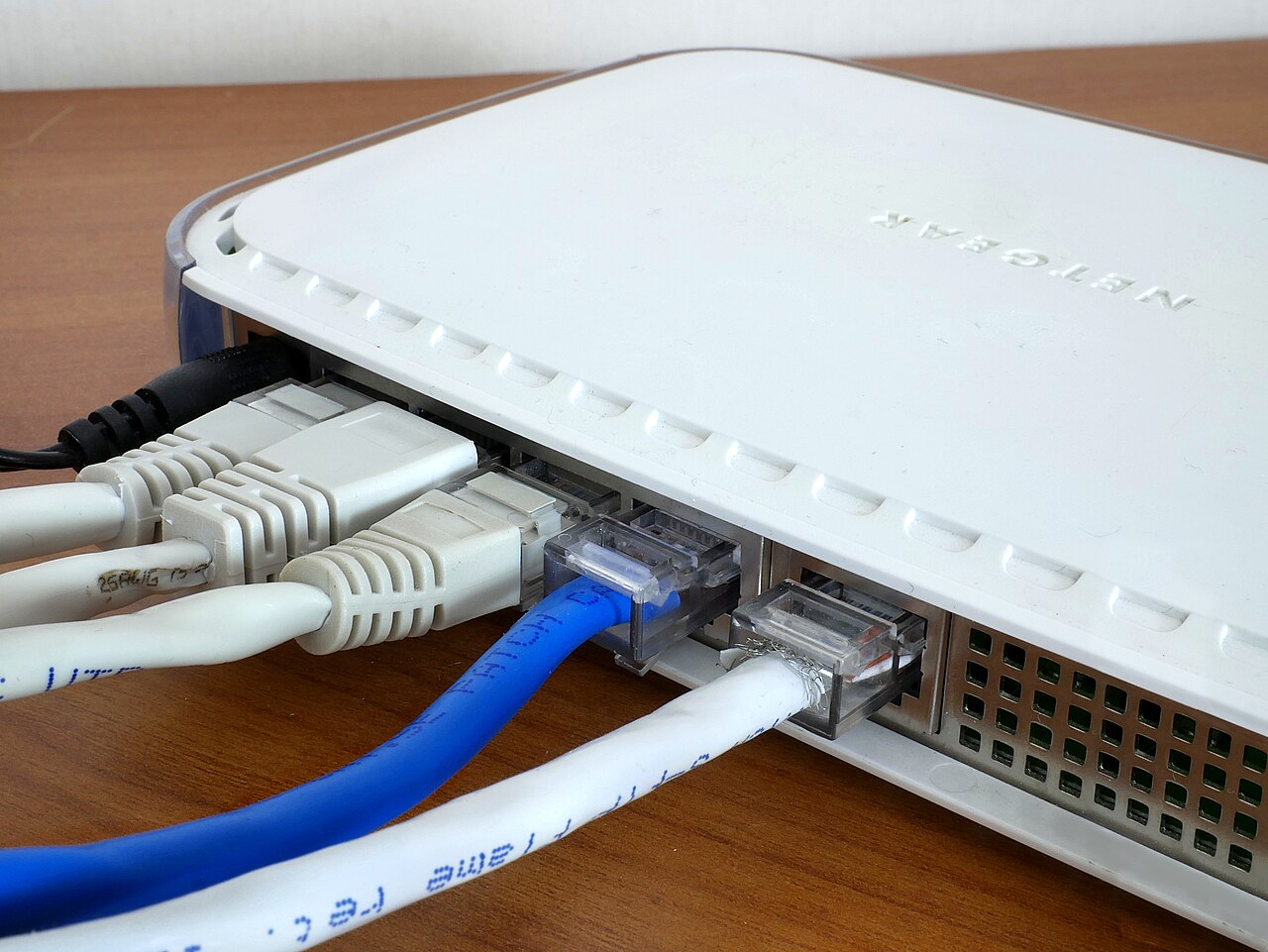
Step 1 — Pick a VPN with router support. Not every provider offers it: you need OpenVPN or WireGuard configuration files for routers — NordVPN supplies them, and it is the provider our Best VPN for Gaming guide recommends. Check your router against the provider’s supported list before you pay.
Step 2 — Check your router can run a VPN client. Many ISP-supplied routers cannot. You need one with built-in VPN client support (Asus, Netgear, and TP-Link all sell models with it), one flashed with DD-WRT, OpenWrt, or Asuswrt-Merlin, or a dedicated VPN router. If yours cannot, that is the real cost of this method — not the subscription.
Step 3 — Upload the VPN configuration. In your VPN account dashboard, generate an OpenVPN or WireGuard config file for a nearby server, upload it in your router’s VPN client settings, and enter your VPN username and password. Save, connect, and confirm the router shows a VPN IP address.
Step 4 — Connect the Switch 2 and test. On the console, go to System Settings → Internet → Internet Settings, pick your home network, and run Test Connection. Docked players should use a wired Ethernet connection through the dock’s USB port; in portable mode the same network works over Wi-Fi. Play a casual Warzone match before anything competitive: a bad server choice can add 30 ms, and you will only find out by testing on your own network.
A Windows PC as a virtual router is the most flexible method for players who travel, play in dorms, or cannot change their router — about ten minutes the first time.
Step 1 — Install the VPN on your Windows PC and connect to a nearby server. Use the provider’s own app and pick a server in your own country or the nearest city — not a faraway one “for better lobbies”: our piece on why a VPN won’t get you easier MW4 lobbies tested why that fails.
Step 2 — Turn on the mobile hotspot. In Windows 11, go to Settings → Network & internet → Mobile hotspot and switch it on.
Step 3 — Share the VPN connection. This is the step most guides skip: open Network & Sharing Center → Change adapter settings, right-click the VPN adapter (for NordVPN, a TAP adapter), open Properties → Sharing, and tick “Allow other network users to connect through this computer’s internet connection”. Without this, the Switch 2 joins the hotspot but bypasses the VPN.
Step 4 — Connect the Switch 2 to the hotspot. On the console, go to System Settings → Internet → Internet Settings, select the hotspot network, enter the password, and run Test Connection. The downside: your PC must stay on and nearby, and the double hop — Switch 2 to PC, PC to VPN server, VPN server to game server — adds latency. Fine for casual matches in a hotel or dorm; for competitive play, use the router method.
Method 3: What about a Mac hotspot or a phone hotspot?
A Mac can share a VPN connection, but it is the fiddliest method: Macs have only one Wi-Fi channel, so a Mac cannot connect to Wi-Fi and broadcast a hotspot at the same time — you need an Ethernet cable into the Mac first. Travelling with only a MacBook and hotel Wi-Fi, it usually does not work at all. Phone hotspots fail the same way: most Android phones and iPhones cannot share a VPN connection over a mobile hotspot, so the Switch 2 ends up unprotected even while the phone shows the VPN as active. If your only internet is a phone, play without a VPN.
What will a VPN actually do for Switch 2 players — and what won’t it do?
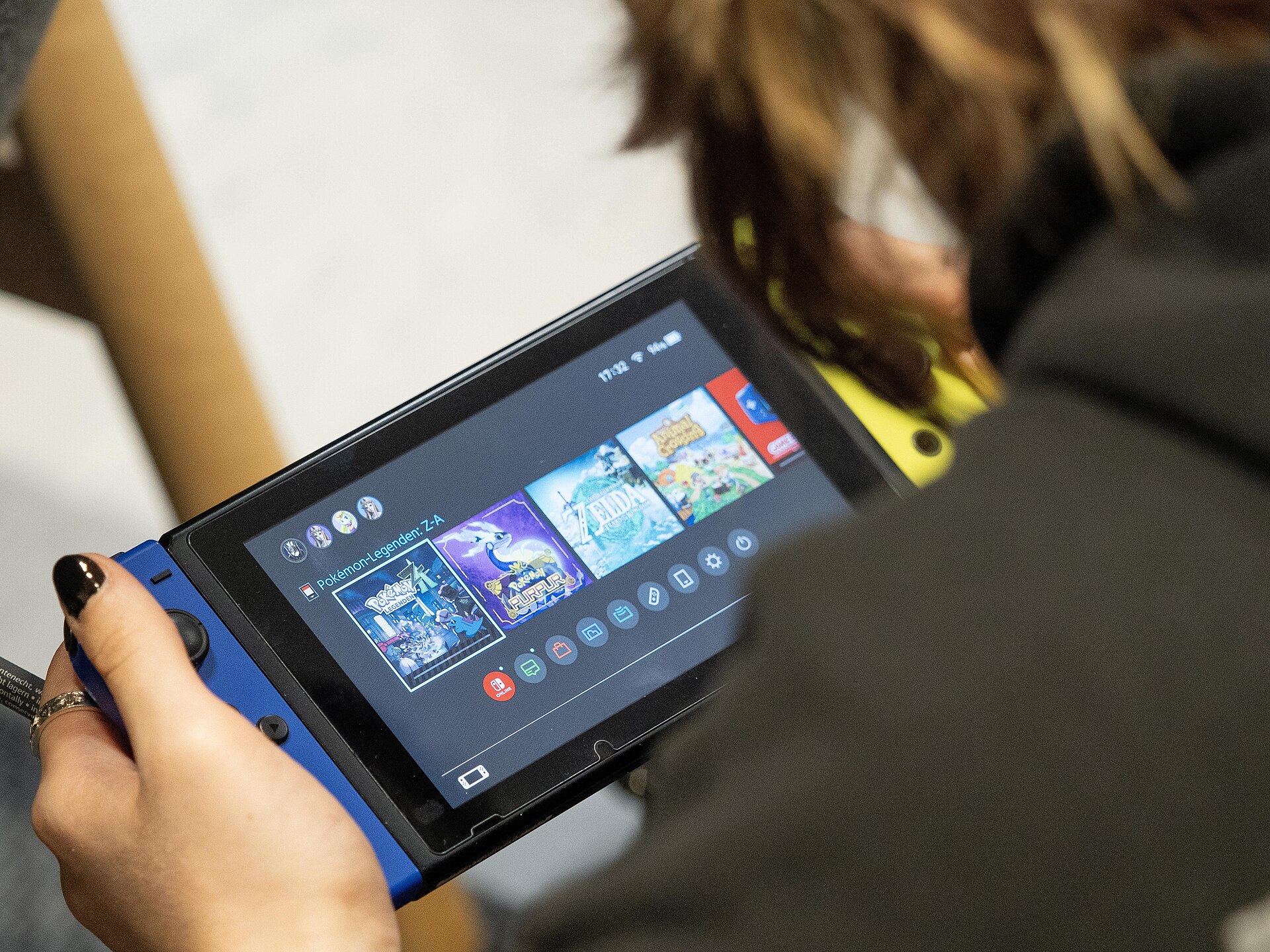
A VPN on Switch 2 does three real things, and none of them is “make you faster”. First, it hides your real IP address — a targeted DDoS attack can knock your home connection offline mid-match. Second, it can route around a bad path: if your ISP throttles gaming traffic at peak hours or its default route is congested, a VPN can sometimes take a cleaner path. Third, it encrypts your traffic on shared networks — dorm Wi-Fi, hotel Wi-Fi, a shared house — where you do not control it.
What it will not do is lower your ping on a healthy connection. A VPN always adds a hop, and on Switch 2 that hop sits on top of input lag already roughly double the PS5’s — Digital Foundry measured 80.7 ms docked and 100 ms in portable mode (83–125 ms range), against 49.1 ms on PS5. NordVPN adds roughly 4–7 ms on a nearby server in our site’s reference figures; independent October 2026 tests measured 11–25 ms on nearby routes. A faraway server can add 100 ms or more — on top of the Switch 2’s existing lag, gunfights become guesswork. Always pick the nearest server and test your ping with the VPN on and off at the same time of day. If your direct connection is already stable and low, a VPN will make it slightly worse, not better, and no VPN setting changes how Warzone builds its lobbies.
On Switch 2, a VPN is a shield for your connection, not a shortcut to easier lobbies: the console already starts with roughly twice the PS5’s input lag, so the only setup worth using adds the fewest milliseconds — a nearby server, on your router, tested before you queue.
What should Switch 2 players avoid when using a VPN?
Three mistakes turn a legitimate setup into a problem. First, do not chase regional pricing or a different region’s eShop: GameSpot warns that circumventing regional pricing is against Nintendo’s Terms of Service, and some games restrict VPN use too. Deactivate the VPN before opening the eShop.
Second, do not use a free VPN: free services log and sell traffic, cap speeds, and run overcrowded servers — the opposite of what you want when the Switch 2 is already fighting input lag.
Third, do not install “VPN apps” from unofficial sources claiming to run on the Switch 2. There is no VPN app for Horizon OS, so anything advertising one is a scam or a modified system file that risks your console and account. The router and hotspot methods above are the only legitimate routes.
Which VPN should Switch 2 players pick in 2026?
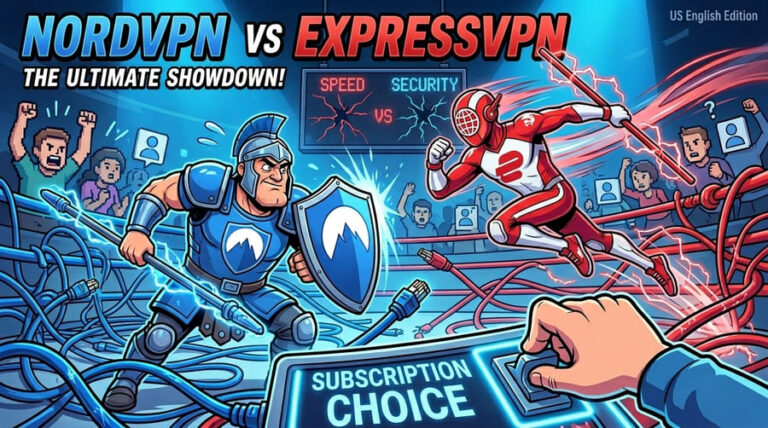
For Switch 2, the deciding features are router support, a large nearby server network, and a modern protocol — not headline speed. Our standing recommendation remains NordVPN: 7,100+ servers across 225+ locations; OpenVPN and WireGuard-based NordLynx configs for routers; 10 simultaneous devices; pricing from around $3.39 per month on a two-year plan; and a 30-day money-back guarantee. See our NordVPN vs ExpressVPN comparison and our guide to using a VPN on PS5 and Xbox. You can check NordVPN’s current pricing here — but buy it for the privacy and routing reasons above, not for easier lobbies.
Verdict: Is a VPN worth it on Nintendo Switch 2?
Yes, for the right player and the right reason. If you play Warzone on Switch 2 from a dorm, a shared house, or public Wi-Fi, or your ISP throttles gaming traffic at peak hours, a VPN on your router is a genuine improvement: it hides your IP, steadies a bad route, and protects you on networks you do not control. Use the router at home, a Windows hotspot when travelling, and always pick the nearest server — the Switch 2’s 80.7 ms docked and 100 ms portable lag leaves no room for a faraway server on top.
If your home connection is already stable and your only goal is better lobbies or lower ping, skip it: a VPN adds milliseconds and cannot change matchmaking. Warzone Season 1 is free — play a few matches on your direct connection first and note your ping before deciding whether a VPN earns its place on your network. If it does, NordVPN is the pick our testing supports, with the honest caveat that it adds a few milliseconds nearby, not remove them.
FAQ
Can you put a VPN directly on a Nintendo Switch 2?
No. Route its traffic through a VPN-configured router or a Windows PC or Mac sharing a VPN-protected hotspot.
Does a VPN lower ping in Warzone on Switch 2?
On a healthy connection, no — it adds roughly 4–7 ms on a nearby NordVPN server. It helps only when your direct route is congested or your ISP throttles gaming traffic.
Will a VPN get me easier Warzone lobbies on Switch 2?
No. Matchmaking weighs connection quality alongside skill, and a VPN cannot switch it off. See our MW4 lobby investigation for the test data.
Is using a VPN on Switch 2 against Nintendo’s rules?
Privacy and routing are legitimate uses, but circumventing regional pricing is against Nintendo’s Terms of Service. Deactivate the VPN before using the eShop.
Can I play Warzone on Switch 2 without buying Modern Warfare 4?
Yes. Warzone is free to play, and Season 1 — live November 6, 2026 — does not require it.
Sources: Dot Esports; Digital Foundry; hide.me; Tom’s Guide; GameSpot; PC Tech Mag (all Oct–Nov 2026). Figures are from those published tests, not our own lab.